Record a drive
Once you tap START on the home screen, LearnerLog flips into recording mode. Your phone becomes a quiet co-pilot — it watches the GPS, logs the route, and counts minutes so you don't have to.
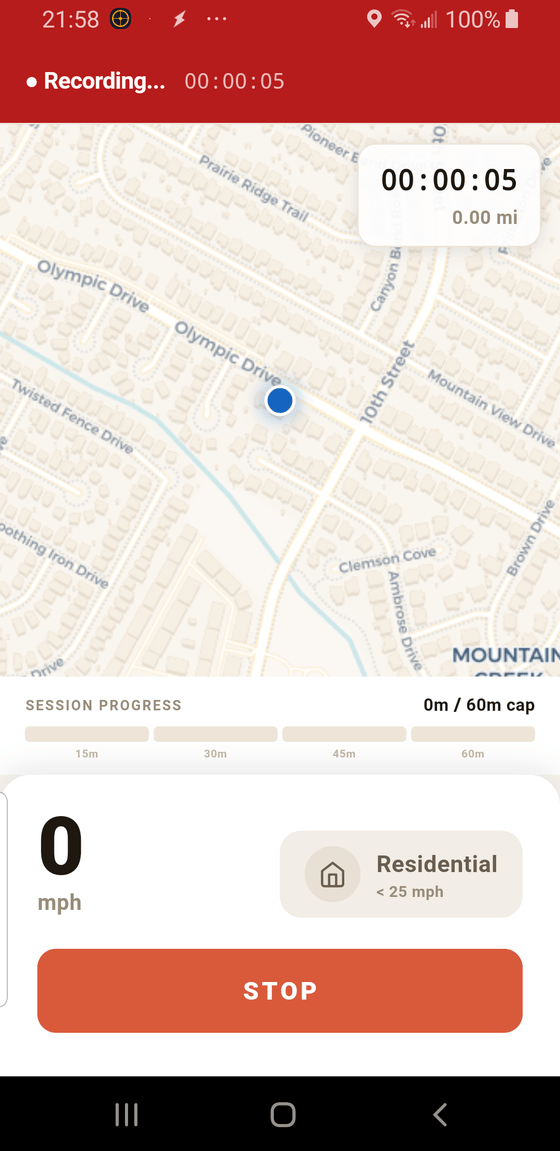
- 1 Recording banner. A red bar across the top shows that GPS is on and minutes are being logged. The timer keeps running even if you lock your phone — a permanent notification keeps the recording alive in the background.
- 2 Elapsed time and distance. Total time since you tapped START and total miles driven so far. Updates live.
- 3 Session progress toward the daily cap. Texas credits at most 60 minutes per day. This bar fills as the drive accumulates, with tick marks at 15, 30, 45, and 60 minutes. Once it hits 60, further minutes still record but don't add to progress. See the credit cap guide for why.
- 4 STOP. Ends the drive and opens the Trip Summary. Tap it when your teen has parked and the practice session is done.
What's on the map
The map is centered on your teen's current location, with a blue dot marking where they are right now. As they drive, a colored line traces the route, and the color changes when the average speed crosses a category threshold — orange-ish for expressway, warmer teal for city, and so on. You don't have to do anything with the map; it's there to reassure you the GPS is working.
Speed and category in real time
Below the map you'll see:
- Current speed (mph). Big and easy to glance at. This is the phone's GPS speed, not the car's speedometer.
- Category chip. What LearnerLog thinks the current stretch is — Residential, City, or Expressway — based on rolling average speed. It can change mid-drive as traffic and speed change; that's fine. Final categories are decided and editable after you stop.
Keeping the recording running
LearnerLog records in the foreground even when your phone screen is off, thanks to a persistent notification. A few things to know:
- Don't swipe the LearnerLog notification away — it's what keeps the recording alive.
- Android battery-saver modes can pause background apps. If you notice gaps in your routes, allow LearnerLog to run unrestricted in your phone's battery settings.
- Airplane mode is fine. GPS works without cell signal, so you can record in rural areas without data.
What happens when you stop
Tapping STOP takes you straight to the Trip Summary. The app slices the drive into practice-activity segments using speed data, labels each one, and drops the whole thing into Progress. You can leave as-is or adjust on that screen.