The Progress dashboard
The Progress tab answers two questions at a glance: "how close are we to 30 hours?" and "which categories still need work?" It's the dashboard you'll open most often once logging is underway.
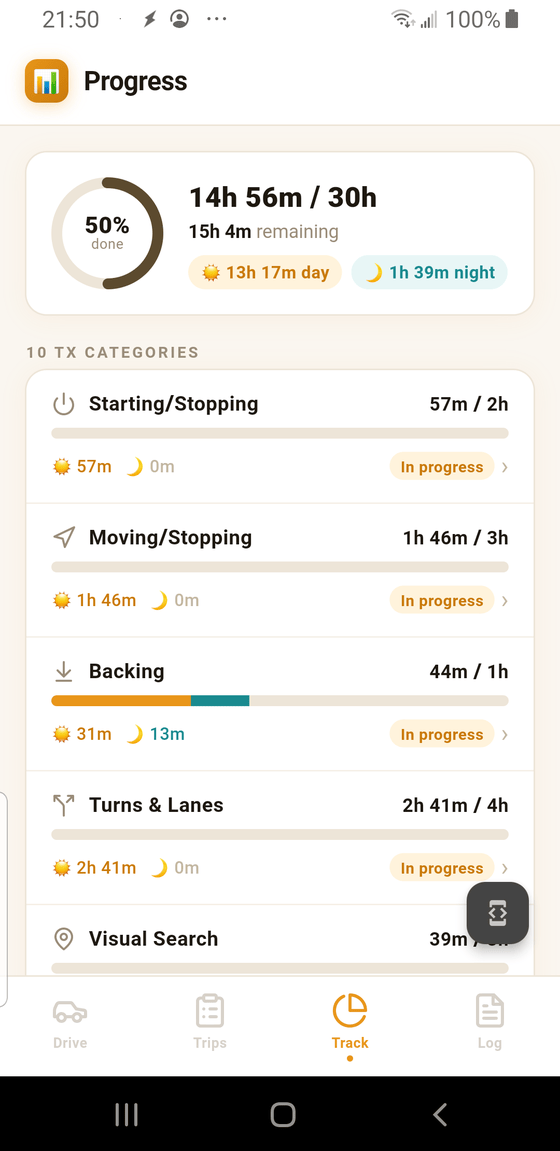
- 1 Overall progress. A ring showing percent complete and the exact hours / 30h total. "Remaining" is what's left, after the daily credit cap is applied.
- 2 Daytime hours. The portion of total hours that count as daytime practice. Texas requires 20 daytime hours minimum.
- 3 Nighttime hours. Practice between sunset and sunrise. Texas requires 10 nighttime hours minimum — often the slowest to accumulate.
- 4 Status tag. Each category shows Not started, In progress, or Complete. Tap a category row to see which drives contributed to that category and by how much.
The 10 TDLR categories
The list below the summary is every category the Texas Department of Public Safety requires. For each you'll see:
- An icon and the category name (Starting/Stopping, Backing, City Driving, etc.)
- Total hours logged for that category, out of the required minimum
- A progress bar — orange for day, teal for night, showing the split
- The day and night minutes broken out underneath
Scroll down to see all ten. When every bar is full and every tag reads Complete, you've met the TDLR minimum in every category.
Tap a category for drill-down
Tapping any row opens a sheet listing every drive that contributed to that category, the date, and how many minutes it added. This is the fastest way to answer "where did those City Driving hours come from?" — useful if something looks off.
Why the dashboard total may differ from the raw minutes
Texas credits a maximum of 1 hour per day. If your teen drives for 2.5 hours in a single session, only 60 minutes of that count toward Progress. LearnerLog handles this automatically — the dashboard always shows the credited total. The raw minutes are still visible in each drive's Trip Summary, and the credit cap guide explains how the 60 minutes get spread across categories.